

Best JavaScript Book For Beginners
If your looking to learn JavaScript your in the right place. This is the best JavaScript book for beginners. It's freely available online with tons of great coding examples. We'll cover all the basics of JavaScript so you can get started writing your own interactive projects.
This course is for the beginner to intermediate coder or anyone that just wants a refresher on JavaScript Syntax. After reading this article you'll want to start creating your own JavaScript projects. This is the best way to learn how to code. Use a search engine to find things you don't know or when you get stuck. There are a lot of great resources out there. Ill include some in this book.
What is JavaScript? Why should I learn it?
JavaScript is one of the 3 languages all web developers must learn. HTML, CSS and JavaScript form the basis of front-end web development. HTML defines the content, CSS is used to design how that content looks and JavaScript is used to program the behavior of web pages.
JavaScript enables you to create interactive elements, dynamically updating content, control multimedia, animate elements, and modify the content of a page. It works on all modern browsers both on desktop and mobile.
A strong knowledge of JavaScript will allow you to create web applications and browser games.
How JavaScript Works?
JavaScript runs in web browsers and in other environments, such as Node.js on a server. In a browser, the DOM API exposes the page to JavaScript. JavaScript works by manipulating elements on the page with DOM (Document Object Model). It allows you to make changes to a web page after it has loaded to my it feel more dynamic. Every html element on the page can be access and changed with JavaScript.
Javascript Overview
JavaScript Fundamentals For Absolute BeginnersHow To Follow Along With This Java Script Course Online
Download a code editor to write JavaScript on your computer.
A code editor makes your code easier to read by highlighting the syntax in different colors. It can also help suggest and auto complete code while your typing to save time. Sometimes finding errors can be tricky. A code editor can help you do that too.
- Sublime Text
- Visual Studio Code
- Notepad ++
JavaScript Console
You can also test code by pasting it in the JavaScript Console. Errors & warnings will also appear in the console. If your code isn't working that's a great place to go to figure out why.
CHROME
To open the console in Chrome, you right-click on a web page and then click "Inspect," and them developers window will appear. Click the "Console" tab next to elements tab in that window. A quicker way is to use a keyboard shortcut.
MAC: Cmd + Option + J
WINDOWS: Cmd +Shift +J

JavaScript Basics PDF
Coming Soon - JavaScript Basics PDF download so you can read it from anywhere. No need for an internet connection. Ill include the entire JavaScript Tutorial as a pdf.

JavaScript Course Content Examples
Coming Soon - Download this package to get access to all the JavaScript course content and coding examples.
How do I add JavaScript to a webpage?
To insert JavaScript into a web page, use the <script> tag. The older method used the type or language attributes. This is no longer required as JavaScript is now the default scripting language inside the browser.
Option: 1 (Old Way)
<script language="javascript">
// Javascript code here
</script>
Option 2: (New Way / Shorthand)
<script>
// Javascript code here
</script>
Option 3: Load An External JavaScript File
<script type="text/javascript" src="script.js"> </script>Display A Warning If Javascript Is Disabled
<noscript>
    <p>Please Enable Javascript to View This Page Properly!</p>
</noscript>
How to add jQuery to website?
<head>
<script src="https://ajax.googleapis.com/ajax/libs/jquery/3.5.1/jquery.min.js"></script>
</head>

<script>
$(document).ready(function(){
    // JQuery code here
});
</script>
How to add jQuery to wordpress?
<script>
jQuery(document).ready(function($) {
  // JQuery code here
})
</script>
How do I add JavaScript to a wordpress website?
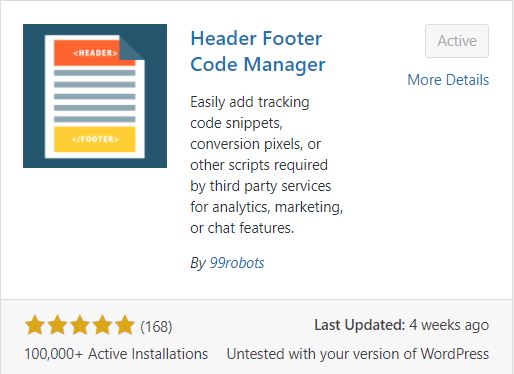
To add JavaScript to a WordPress website with a plugin download and install the HFCM Plugin. Stands for Header Footer Code Manager. With this plugin you can add site wide or page specific JavaScript code to the header or footer of your wordpress website. It has a lot of handy features including one that will allow you to disable code from one place, use short codes, and add code to just the mobile or desktop versions of your website.
Storing & Manipulating Data With Variables
Variables give names to values. Declare a variable before using it. Use const by default and let when the binding needs to be reassigned. A let or var declaration without an initializer has the value undefined once the declaration has been reached. A const declaration requires an initializer.
There are 3 ways to declare a variable in JavaScript.
- var: Function-scoped, or global in a classic script outside a function. It is not block-scoped.
- let: Block-scoped and can be reassigned.
- const: Block-scoped and cannot be reassigned. An object or array held by a constant can still be mutated.
Rules for variable names
- Names may contain letters, digits, underscores and dollar signs, with support for many Unicode characters.
- A name cannot begin with a digit. An underscore or dollar sign is allowed at the start.
- Names are case-sensitive:
priceandPriceare different. - Reserved keywords cannot be used as variable names.
- Use descriptive camelCase names such as
firstName.
JavaScript has 8 data types: 7 primitives and object.
- undefined: The value of an initialized variable with no assigned value. Reading an undeclared name throws a ReferenceError.
- null: An intentional absence of a value.
- boolean: true or false.
- number: Numbers, including floating-point values, Infinity and NaN.
- bigint: Integers of arbitrary precision, such as
123n. - string: Text.
- symbol: A unique primitive value, often used as an object property key.
- object: Collections of properties; arrays and functions are also objects.
Use typeof value to inspect a value's type, with two historical exceptions to remember: typeof null is "object", and functions return "function". Use Array.isArray(value) to check for an array.
Declaring & Assigning Variables.
// Initializes a variable. The value is set to undefined.
// Function-scoped, or global at the top level of a classic script.
var variable;

// Block Scope Local Variable
let variable2 = "Local Scope";

// A binding that cannot be reassigned; objects can still be mutated.
const pie = 3.1415926535897932384626433;

// Declaring many variables in one statement.
var person = "Cindy Smith", carType = "Ford", price = 35000;

// Lets you see the value of the variable in the console. Great to debug your code and make sure things are working.
console.log(variable);
console.log(variable2);
console.log(pie);

// Console log multiple variables in one statement
console.log("PERSON: " + person + " CAR TYPE: " + carType  + " PRICE: " + price);
String Variables In Javascript
// String (Text) ---------------------------------------------------------
var customer = "Cindy Smith";
var message = 'Yes I am!';

// Concatenate Strings - Joining Strings Together
var customerMessage = customer + ": " + message;
var fullName = "John" + " " + "Doe";
var ourString = "First sentence. " + "Second sentence."
var myStr = "Hello, my name is " +  fullName + " and i'm a happy coder!";

console.log(customer);
console.log(message);
console.log(customerMessage);
console.log(fullName);
console.log(ourString);
console.log(myStr);
console.log(typeof customer); // Gets type of variable
Find The Length Of A String
var myFirstName = "Nathan Ergang";
var lengthOfFirstName = myFirstName.length;

console.log("My first name is " + myFirstName + ". That has " + lengthOfFirstName + " characters in it.");

// CONSOLE: My first name is Nathan Ergang. That has 13 characters in it.
Advanced Strings
// A template literal can contain double quotes.
const htmlTemplate = `<a href="https://www.greenmarketing.ca">Link</a>`;

// A single-quoted string can also contain double quotes.
const htmlSingle = '<a href="https://www.greenmarketing.ca">Link</a>';

// Escape double quotes inside a double-quoted string with a backslash.
const htmlEscaped = "<a href=\"https://www.greenmarketing.ca\">Link</a>";

// ${...} interpolates an expression inside a template literal.
const text = `half of 100 is ${100 / 2}`;
console.log(text); // half of 100 is 50
Escape characters inside a sting.
Some chatacters don't work inside a sting and need to be escaped to work.
(Simular to new line)
A form feed is a page-breaking. Forces the printer to start a new page.
Bracket Notion
Get a character within a specific index of the string. Remember that javaScript uses ZERO BASED INDEXING which starts at 0 not 1.
const myFirstName = "Nathan Ergang";
const firstLetterOfTheString = myFirstName[0];
const lastLetterOfTheString = myFirstName[myFirstName.length - 1];
console.log(`The first letter is ${firstLetterOfTheString} and the last letter is ${lastLetterOfTheString}.`);
// Strings are immutable. This assignment would fail in strict mode:
// myFirstName[0] = "E";
// Create a new string to change a character instead:
const changedName = "E" + myFirstName.slice(1);
console.log(changedName); // Eathan Ergang
Numbers & Variables In Javascript
In JavaScript, just like in algebra, we can use variables in an expression.
Number Variables
// Numbers
var price_1 = 3;
var price_2 = 10.99;
var total = price_1 + price_2;

console.log(price_1 + " PLUS " + price_2 + " = " + total);
console.log(typeof total); // Gets type of variable
Javascript Expressions
const price_1 = 3;
const price_2 = 10.99;
const totalCost = price_1 + price_2;
const sum = 10 + 12 + 33;
const difference = 50 - 10;
const product = 10 * 10;
const quotient = 100 / 10;

// Initialize a number before incrementing or decrementing it.
let myIncrement = 10;
myIncrement = myIncrement + 1; // 11
myIncrement++; // 12: another increment
let myDecrement = 10;
myDecrement = myDecrement - 1; // 9
myDecrement--; // 8: another decrement

const remainder = 44 % 10; // 4
const isEven = 44 % 2 === 0; // true

// Each pair below performs the operation twice.
let a = 100;
a = a + 40;
a += 40; // 180
a = a - 40;
a -= 40; // 100
a = a * 40;
a *= 40; // 160000
a = a / 40;
a /= 40; // 100
Javascript Arrays - Storing Data In Lists
Arrays are a way to store multiple values in one variable. They’re great for storing a list of items. Creating an array is similar to creating a variable except you assign it with square brackets with your list of items inside . Make sure to wrap string items in quotes "string".
Creating Arrays
var array_name = [1, 2, 3];
console.log(array_name);

// Reassign this variable to a new empty array. Other references keep the old array.
array_name = [];
console.log(array_name);

// Creates an empty array
var empty_array = [];

// Array of fruits
var fruits = ["banana", "apple", "orange", "grape"];
console.log(fruits);

// Arrays can span multiple lines
var cars = [
  "Ford",
  "Tesla",
  "Volvo"
];
console.log(cars);

/* You can also create an array this way with the new keyword. The method above is preferred as it’s easier to read and avoids the special single-number behavior of new Array. This is just to show you another way of doing things that you might see */
var travel = new Array("Vietnam", "Canada", "Thailand", "Japan");
console.log(travel);
Access The Elements Of An Array
You can access the values by referring to an index number in the array. Array indexes start with 0 so the first item will have an index of 0.
Accessing Array Elements
// Create 2 Arrays
var fruits = ["Banana", "Apple", "Orange", "Grape"];
var cars = ["Ford", "Tesla", "Volvo"];

// Stores the first element in the car array "Ford" in a variable.
var name = cars[0];
console.log(name);

// Prints out Banana in the console.
console.log(fruits[0]);

// Changing a value of an element in an array.
// Arrays are mutable. Strings cannot be changed with bracket notation.
fruits[0] = "Water Melon";
console.log(fruits[0]);
Nested Arrays [Multi Dimensional Arrays]
A nested or multidemensional array is an array inside of an array or an array of arrays.
Nested Arrays
// Nested Array / Multi Dimensional Array - An array inside an array
var multiDimensional = [
   ["Universe 1", 34823], ["Universe 2", 19282]
];
console.table(multiDimensional);

// Flatten a multidimensional array into one array
console.table(multiDimensional.flat(Infinity));

// Select a single value within a multidimensional array
var universeCoordinate = multiDimensional[0][1];
console.log(universeCoordinate);
Array Methods
JavaScript Conditional Logic - If Statements
If statements are used to make decisions in code. If this happens then do this. If not, do this instead. The order matters once the first condition is met it does not check any other conditions.
Use the else if statement to specify a new condition if the first condition is false. Use the else statement to specify a block of code to be executed if all other conditions are false
If Statements Syntax
const val = 8;
if (val > 10) {
// Value is greater than 10
}
else if (val < 5) {
// Value is smaller than 5
}
else {
// Value is between 5 and 10
}
Check to see if a variable is an array using .isArray()
var activities = ["Yoga", "Working", "Sports", "Reading"];
var car = "Ford";
if (Array.isArray(activities)) {
    console.log(activities + " Is an array!");
}
if (Array.isArray(car) != true) {
    console.log(car + " Is not an array!");
}
Comparison Operators
Equal
Compares values after type conversion. A single = assigns a value.
Strict equal
Compares values without type conversion. Prefer this when you do not intend coercion.
3 === "3" // false
Not equal
Checks whether values differ after type conversion.
Strict not equal
Checks whether the values or their types differ.
Greater than
True when the left value is greater than the right value.
Less than
True when the left value is less than the right value.
Greater than or equal to
Includes equality as well as greater values.
Less than or equal to
Includes equality as well as smaller values.
Logical AND
Both comparisons must be true. This checks whether val is between 25 and 50, inclusive.
Logical OR
At least one comparison must be true. This checks whether val is below 20 or above 50.
JavaScript Switch Statements
The switch statement allows you to perform different actions based on different conditions. It then runs a block of code based off of those conditions.
The default keyword specifies the code that will run if there is no match.
The Break Keyword stops the execution inside the switch block. Used to jump outside of the switch statement and not make any further checks. The last condition doesn’t need a break as that happens automatically.
Switch Statements - Lets you know what day it is.
var day;
switch (new Date().getDay()) {
  case 0:
    day = "Sunday";
    break;
  case 1:
    day = "Monday";
    break;
  case 2:
     day = "Tuesday";
    break;
  case 3:
    day = "Wednesday";
    break;
  case 4:
    day = "Thursday";
    break;
  case 5:
    day = "Friday";
    break;
  default:
    day = "Saturday";
}
console.log("Today is " + day);
document.write("Today is " + day);
Ternary Operator
The Ternary Operator ? Is a shortcut for If/Else Statements. Allows you to shorten the condition into one line. It will assign a value to a variable based on some condition. The downside is it can make the code harder to read.
Ternary Operator
const isAdult = true;
const message = isAdult ? "Adult" : "Minor";
console.log(message); // Adult
Random Velocity Direction
// Pick a velocity of either 100 or -100.
const velocity = 100 * (Math.random() > 0.5 ? 1 : -1);
console.log(velocity);
JavaScript Functions
A function is a block of code that is designed to perform a task that can be used over and over again. Functions are very important in Javascript.
JavaScript Built In Functions
console.log(); // Writes out text to JavaScript Console Create Your Own Functions
The Function Keyword: is used to define a function. It’s followed by its name and parentheses (). Function naming follows the same rules as variables. The code that gets executed when the function is called goes between the curly brackets {}.
Parameters: Are variables listed inside the parentheses as a part of the function definition. Parameters allow you to input data into the function to produce different results.
Creating JavaScript Functions
// Defines the function
function myFunction(parameter1, parameter2) {
// code to execute
}
//Calls the function
myFunction(1,7);
The Return Statement
Stops code from executing inside the function. It also returns a value to the function caller. An ordinary function returns undefined if execution reaches the end without returning a value. This function doubles its input then returns the value to the caller so that can be read inside the console.
String Variables In Javascript
//Function that doubles the input
function double(input) {
return input * 2;
}
console.log(double(2));  // console will read out number 4
JavaScript Arrow Functions
Arrow functions provide a shorter function syntax. An expression body without braces returns its result implicitly, such as const double = n => n * 2;. A block body with braces requires an explicit return to return a value. Arrows inherit this from the surrounding scope; they do not have their own this or arguments and cannot be called with new.
Arrow Function With No Parameters
const horn = () => {  console.log("Toot")  };
horn();
JavaScript Loops
Loops are used to repeatedly run a block of code over and over again until a condition has been reached. This is often the case when working with arrays. You would want to loop through all the data and perform some kind of action on them. JavaScript offers several ways to run loops.
In terms of best practices and conventions, for loops are for a known number of iterations and while loops are to be executed until their intended job is done.
Output note: the legacy examples use document.write() while the page is being parsed. Calling it after the page has loaded can replace the document. For new code, use console.log() or update a dedicated element with textContent.
For Loops
A for loop is made 3 important parts.
Initialization: The starting point of the counter.
Test Statement: Set the end point of the counter. Test to see if the counter has been reached. If it has exited the loop. If not run the code inside the loop until it does.
Iteration Statement: Amount to increase or decrease your counter by.
For Loop Syntax
for ([initialization]; [test condition]; [iteration statement]) {
   // Statement(s) to be executed if test condition is true
}
For Loop - Examples
Count To 10
document.write("Count to 10.." + "<br />");
for(var count = 1; count <= 10; count++) {
document.write(count + " ");
}
Lets modify this a little to be a count down timer for a rocket ship.
Countdown Timer
document.write("Starting Countdown.." + "<br />");
for(var count = 10; count >= 1; count--) {
document.write(count + " ");
}
document.write("Blast Off!!!!!");
The most common use of a 'for loop' is to loop through an array.
Loop Through An Array
var fruitArray = ["Banana", "Apple", "Grape", "Orange", "Cherry"];

for (let i=0; i< fruitArray.length; i++) {
document.write(fruitArray[i] + "<br/>");
}
JavaScript While Loop
This one loops through a block of code as long as a specified condition is true.
While Loop Syntax Example
while (condition) {
// code block to be executed
}
While Loop Example
var c=0;
while (c < 25) {
    console.log(c);
    document.write(c+"<br>")
    c++;
}An infinite loop will keep running forever. If you accidentally make one you can crash your browser or computer. In the above code if you forget to increase the variable used in the condition, the loop will never end. A loop can be terminated with the break keyword.
Break Out of a Loop Example
// Set a condition to true
const iceCapsAreMelting = true;
let polarBearsLeft = 5;

// Initiate infinite loop
while (iceCapsAreMelting) {
  console.log(`There are ${polarBearsLeft} polar bears.`);
  document.write(`There are ${polarBearsLeft} polar bears.<br>`);
  polarBearsLeft--;
  // Terminate infinite loop when following condition is true
  if (polarBearsLeft === 0) {
    console.log("There are no polar bears left.");
    document.write("There are no polar bears left.");
    break;
  }
}
Do…While Loop
Similar to the while loop except the block of code will run first, then the condition will be tested to see if it should run again.
Do While Loop Syntax Example
do {
    // code block to be executed
} while (condition);
DOM - Document Object Model
What is DOM?
DOM or Document Object Model is an interface that allows programs and scripts to dynamically access and update the content of a website. It turns every element on the page into an object and allows you to access it with JavaScript or other languages. This is how you can change, add or delete HTML elements even after the page has loaded.
With DOM you can:
- Change the content of an HTML element.
- Change the styles or CSS of an HTML element.
- Add, delete, hide or perform actions on HTML elements.
- Change the value of properties.
DOM METHODS
The document object contains all objects on your page. Methods are actions you can do. on those objects. If you want to access an HTML element on the page you can start with document or search within an existing element using its methods.
DOM PROPERTIES
A property is a value you can set or get.
Before running the DOM examples: create the matching HTML elements first and run the script after them, or load an external script with defer. The examples use IDs such as text_01, main-header, myImage and items, and list items with class list-group-item. A selector with no match returns null or an empty collection; check it before changing an element. Supply your own image URL in the image example.
How To Change The Content Between HTML Tags With The DOM
Grabs the element by it's ID & adds HTML content inside that element.
document.getElementById("text_01").innerHTML = "<b>New Text!</b>";Grabs the element by it's ID & adds TEXT content inside that element. NO HTML.
document.getElementById("text_01").textContent = "New Text!";You can also store the element in a variable and perform actions on the variable.
var text = document.getElementById("text_01");
 text.textContent = "New Text!";
Change The CSS Styles Of An Element
To change the style of an HTML element use .style followed by the .propertyName. The attribute names are similar to CSS just without the dash. Use camel case instead.
Changes the text color to blue.
document.getElementById("text_01").style.color = "blue";Adds a 3px black border to the bottom of the element.
document.getElementById("main-header").style.borderBottom = 'solid 3px #000';Change An Attribute Of An Element.
Changes the image.
document.getElementById("myImage").src = "sad.jpg";Change Elements by Class Name.
var items = document.getElementsByClassName('list-group-item');

// Outputs the whole collection of items with this class name to the console.
 console.log(items);
 //Outputs the second list item to CONSOLE. Starts counting for 0.
 console.log(items[1]);

// Change text of the second list item,
 items[1].textContent = "Changed Text In List";

 // To change something about all items with that class name you need to use a loop.
 for (var i = 0; i < items.length; i++) {
 items[i].style.backgroundColor = "#f4f4f4";
 }
Change Elements By Tag Name.
// Finds all <p>  tags and stores them in a variable
var pTags = document.getElementsByTagName("p");

// Change the background of all <li> elements
var li = document.getElementsByTagName("li");

for (var i = 0; i < li.length; i++) {

     li[i].style.backgroundColor = "#f4f4f4";

}
Change Elements With Query Selector.
Only grabs the first element in the list. You can use any CSS selector.
// Run after the HTML has loaded. Each selector needs a matching element.
const pTagsIntro = document.querySelectorAll("p.intro");
const header = document.querySelector("#main-header");
if (header) header.style.borderBottom = "solid 4px #ccc";

const input = document.querySelector('input[type="text"]');
if (input) input.value = "Hello World";
const submit = document.querySelector('input[type="submit"]');
if (submit) submit.value = "SEND";

const lastItem = document.querySelector(".list-group-item:last-child");
if (lastItem) lastItem.style.color = "blue";
const secondItem = document.querySelector(".list-group-item:nth-child(2)");
if (secondItem) secondItem.style.color = "blue";
Change Elements With Query Selector All.
Grabs all the elements and stores them in a list. .
const titles = document.querySelectorAll("h2");
if (titles.length > 1) titles[1].textContent = "Hello";

// querySelectorAll returns a NodeList. Style each element, not the list.
const odd = document.querySelectorAll("li:nth-child(odd)");
const even = document.querySelectorAll("li:nth-child(even)");
odd.forEach(item => { item.style.backgroundColor = "#f4f4f4"; });
even.forEach(item => { item.style.backgroundColor = "#ffffff"; });
TRAVERSING THE DOM
Moving up and down with your DOM selection. Looking at parent, sibling & child nodes etc.
THE PARENT NODE: <h1><b>Text</b></h1>
Element outside an HTML tag. The Parent of <b> is <h1>
// #items selects the element whose id is "items".
const itemList = document.querySelector("#items");
if (itemList) {
    console.log(itemList.parentNode);
    console.log(itemList.parentElement);
    // parentNode can be any node; parentElement is an Element or null.
    if (itemList.parentElement) {
        itemList.parentElement.style.backgroundColor = "#f4f4f4";
        console.log(itemList.parentElement.parentElement);
    }
}
CHILD NOTE: <h1><b>Text</b></h1>
The elements inside. <b> is a child of <h1>
const itemList = document.querySelector("#items");
if (itemList && itemList.firstElementChild) {
    console.log(itemList.firstElementChild);
    itemList.firstElementChild.textContent = "Hello 1";
}
if (itemList && itemList.lastElementChild) {
    console.log(itemList.lastElementChild);
    itemList.lastElementChild.textContent = "Hello 5";
}
SIBLING NODE: <ul><li>Item 1</li><li>Item 2</li></ul>
Elements beside each other. Item 1 & 2 are sibblings of each other.
const itemList = document.querySelector("#items");
if (itemList) {
    console.log(itemList.nextElementSibling);
    console.log(itemList.previousElementSibling);
    if (itemList.previousElementSibling) {
        itemList.previousElementSibling.style.color = "green";
    }
}
CREATE , INSERT DOM ELEMENTS
const newDiv = document.createElement("div");
newDiv.className = "newDivClass";
newDiv.id = "div1";
newDiv.setAttribute("title", "New div");
newDiv.appendChild(document.createTextNode("Hello World!"));
newDiv.style.fontSize = "30px";
console.log(newDiv);

// Insert as the first child of the header's container, if it exists.
const container = document.querySelector("header .container");
if (container) container.insertBefore(newDiv, container.firstChild);
DELETE DOM ELEMENTS
Use element.remove() to delete an element from the DOM. Alternatively, call parent.removeChild(element) on its parent. This example expects HTML elements with IDs item-to-delete and another-item. Run it after those elements have loaded; the checks safely skip elements that do not exist. Removing a DOM element changes the current page, not the original HTML file.
Delete DOM Elements
// Modern approach: remove the element itself.
const item = document.getElementById("item-to-delete");
if (item) {
    item.remove();
}

// Alternative approach: ask the parent to remove its child.
const anotherItem = document.getElementById("another-item");
if (anotherItem && anotherItem.parentNode) {
    anotherItem.parentNode.removeChild(anotherItem);
}
JavaScript Events
An event is something the browser does or something the user does. JavaScript can react to events and then let you run code after the event has been detected. Since JavaScript code is usually several lines long It's more common to see events calling functions.
Examples of JavaScript Events:
- Page finishes loading
- Input field has changed
- Something has been clicked
- A key has been pressed
- Window gets resized
- When a form gets submitted
- Get the full list of events here.
Example 1:
Example 2:
ADDING AN EVENT HANDLER TO AN HTML ELEMENT (Old Way)
HTML Event Handler Examples
<!--Syntax Example-->
<element event="JavaScript Code To Execute"></element>

<!--On click runs some code-->
<button onclick="this.innerHTML = Date()">The time is?</button>

<!--On click runs a function-->
<button onclick="displayDate()">The time is it</button>
<p id="showdate"></p>
<script>
function displayDate() {
  document.getElementById("showdate").innerHTML = Date();
}
</script>
JAVASCRIPT EVENT HANDLERS (New Way)
This is the better way of handling events because it keeps HTML clean. The JS Events and HTML are Separated. No need to modify the HTML document to get an event to work.JavaScript Event Handlers - Button Click
// Grabs the Html Element by it's ID and stores in a variable.
var button = document.getElementById("button");

// Adds a click event to the button and calls a function
button.addEventListener("click", buttonClick);

// The action that happens when button is clicked
function buttonClick(){
  console.log("Button was clicked");
}
JavaScript Event Handlers - Different Types Of Mouse Events
var button = document.getElementById("button");
var box = document.getElementById("box");

button.addEventListener("click", runEvent);
button.addEventListener("dblclick", runEvent);   // Only fires on double click
button.addEventListener("mousedown", runEvent);  // as soon as you click down. No need to lift up
button.addEventListener("mouseup", runEvent);  // Nothing happens till mouse is released

//Only for that element itself not it's children
box.addEventListener("mouseenter", runEvent); // Mouse Enters Box
box.addEventListener("mouseleave", runEvent); // Mouse Leaves Box

// Includes children inside the box
box.addEventListener("mouseover", runEvent); // Mouse Enters Box
box.addEventListener("mouseout", runEvent); // Mouse Leaves Box
box.addEventListener("mousemove", runEvent); // Inside the box moving the mouse

function runEvent(e){
  // Sends data to console about event type
  console.log("EVENT TYPE:"+ e.type);
  // Changes the color of the box based on mouse position
  box.style.backgroundColor = "rgb(" + e.offsetX + "," + e.offsetY + ",40)";
}
JAVASCRIPT EVENT PROPAGATION
This is the blanket term for both event bubbling and capturing. This refers to the order in which event handlers are called.1. EVENT BUBBLING (Default):
When capture = false Events ripple up from child element all the way to the top of the document. Starts with the element that triggered the event then moves up the DOM tree to the parents in the hierarchy. If this parameter is omitted the default value is false.2. EVENT CAPTURE:
When capture = true With event capture it run the function on the way down. Events go from top of the document (The window object) all the way down to the element that was clicked.JavaScript Event Handling - Event Bubbling
// EVENT BUBBLING
document.addEventListener('click', function (event) {

    if (event.target.classList.contains( 'className' ) ) {
            //  Event Action Here
    }

}, false);


// EVENT BUBBLING
document.addEventListener('click', listener, false);
function listener(e) {
// Do Something
}

// EVENT CAPTURING
document.addEventListener('click', listener, true);
Debugging
Debugging means finding and fixing errors in your code. Open your browser's developer tools and check the Console for error messages. Start with the first error: its message and line number can help you find the problem.
Inspect values with console.log()
Log the values involved in a calculation to check whether they match what you expect. Logging an object lets you label several values together.
Inspect Variables In The Console
const price = 20;
const quantity = 3;
const total = price * quantity;

console.log({ price, quantity, total }); // total: 60
console.assert(total === 60, 'Check the total calculation');
Pause your code with a breakpoint
In the developer tools' Sources panel, click a line number to set a breakpoint. When execution reaches that line, you can inspect variables and step through the code. You can also place a debugger; statement in your JavaScript. Keep developer tools open to pause there, and remove the statement when you finish debugging.
Pause And Inspect A Function
function calculateTotal(price, quantity) {
    debugger; // Pause here when developer tools are open.
    return price * quantity;
}

console.log(calculateTotal(20, 3)); // 60
What to check first
- Check spelling and capitalization in variable and function names.
- Check that quotes, parentheses, and braces are paired correctly.
- Inspect values before the line that produces the wrong result.
- When working with the DOM, check that the element exists before using it.
- Fix one issue at a time, then run the code again.
JavaScript Objects - OOP: Object Oriented Programming
Procedural Programming:
Procedural programming, also known as inline programming takes the top-down approach. Its basicly a list of instrctions for the computer to follow. It's a style of programming that uses variables to store data and functions to modify that data.
Usually simple & straight forward for small scripts but often ends in spaghetti code with large programs. This happens because there is an Inter dependency between functions. This can become problematic and break things in large programs.
OOP: Object Oriented Programming
Examples of objects
Car
Properties
- Model: "Tesla"
- Color: "Red"
- LicencePlateNo: "FG 4589"
Methods
- stop()
- start()
- move()
- changeGear()
Local Storage
Properties
- length: 0 (when empty)
Methods
- clear()
- getItem(key)
- removeItem(key)
- setItem(key, value)
Person
Properties
- firstName: "Nate"
- lastName: "Ergang"
- age: 30
Methods
- wakeUp()
- eat()
- sleep()
4 PILLARS OF OOP
1 ENCAPSULATION:
2 ABSTRACTION:
3 INHERITANCE:
4 POLYMORPHISM:
Creating Objects
Object Literal Syntax - The simple way to define an object.
// Object is created with curly braces
const circle = {};
Object Literal Syntax Example
// Doesn't duplicate well. You have to copy the code.
// An object is a collection of key value pairs
const circle = {
    //Properties - Holds values
    radius: 1,
    location: {x:1, y:1},
    //Methods - Define logic & behavior
    draw: function() {
        console.log("Draw Circle!");
    }
};
circle.draw();  //Call draw method
Multiple Instances of Objects
2 Ways to create objects with functions. Use these if you plan to create multiple instances of the same object.Factory Function - Using a function to create an object
// A factory returns an object; call it without "new".
function createCircle(radius) {
    return {
        radius: radius,
        draw() { console.log("Draw circle!"); }
    };
}
const anotherCircle = createCircle(1);
console.log(anotherCircle.radius); // 1
anotherCircle.draw();
Constructor Function - Using a function to create an object
// Constructor = function used to create an object
// Constructor Functions use this and new keywords
function Circle(radius) {
  this.radius = radius;
  this.draw = function() {console.log("Draw circle!");}
  // Shows what this is in console    This: Circle {}
  console.log("This:", this);
}

// When we use a new operator to call a function it will create an object.
const anotherCircle = new Circle(1);
anotherCircle.draw();
JavaScript Local Storage
Local storage saves string key/value pairs in the browser and usually survives reloads and browser restarts. It is separated by origin: protocol, hostname and port. HTTP and HTTPS storage are separate. Users or browser policies can clear it, and private browsing may limit its lifetime.
Browsers generally allow up to 5 MiB of local storage per origin. Writes can fail when storage is full or blocked, so handle errors with try...catch. Use JSON.stringify() to save a JSON-compatible object and JSON.parse() to read it back. Local storage is accessible to scripts on the same origin; do not use it to store passwords or sensitive secrets.
Inspect it in your browser's developer tools under Application or Storage > Local Storage.
Common methods:localStorage.setItem(key, value)localStorage.getItem(key) returns a string, or null when the key does not exist.localStorage.removeItem(key)
JavaScript - Local Storage Simple Example
// Set a local storage item
var siteName = 'My Site';
localStorage.setItem('siteName', siteName);
// First perameter is the name we will use to lookup data from local storage.
// Second parameter is the variable we are saving the data from

// Access a local storage item
var siteName_ls = localStorage.getItem('siteName');
console.log(siteName_ls);

//Remove item from local storage
localStorage.removeItem('siteName');
Storing objects in local storage with JSON
var siteData = {
  siteName: 'My Site',
  siteDescription: 'Best website in the World!!'
}
var localData;

// Objects need to be stored as a sting
// You can convert it to a JSON sting by using the JSON.stringify method
// JSON object are stings of text
localStorage.setItem('siteData', JSON.stringify(siteData));
//When we get a json item out of storage we have to convert it back to an object.
// We do this with JSON.parse method
localData = JSON.parse(  localStorage.getItem('siteData')  );

console.log(localData);   // JavaScript Object to console
console.log(  localStorage.getItem('siteData')  );  //JSON data
Taking user input from a form & storing it in Local Storage
Let combine everything we've learned so far into a little project that takes user input and stores it into local storage. The user can choose to retrieve that data or delete it. Here's an example and the code that make it work.LOCAL STORAGE User input from a form
<!DOCTYPE html>
<html lang="en">
<head>
<meta charset="UTF-8">
<title>Local Storage Example</title>
</head>
<body>
<form id="ls-form">
    <label for="ls-name">Name:</label>
    <input type="text" id="ls-name"><br>
    <label for="ls-message">Message:</label><br>
    <textarea rows="5" cols="30" id="ls-message"></textarea><br>
    <button type="submit" id="ls-send">Save Data</button>
    <button type="button" id="ls-retrieve">Retrieve Data</button>
    <button type="button" id="ls-delete">Delete Data</button>
</form>
<p id="ls-data" role="status" style="white-space: pre-line;"></p>
<script>
(() => {
    const form = document.getElementById("ls-form");
    const nameInput = document.getElementById("ls-name");
    const messageInput = document.getElementById("ls-message");
    const output = document.getElementById("ls-data");
    const storageKey = "siteData";

    form.addEventListener("submit", event => {
        event.preventDefault(); // Save locally without reloading the page.
        try {
            const data = { name: nameInput.value, message: messageInput.value };
            localStorage.setItem(storageKey, JSON.stringify(data));
            output.textContent = "Data saved in this browser.";
        } catch (error) {
            output.textContent = "Unable to save: browser storage is unavailable or full.";
        }
    });

    document.getElementById("ls-retrieve").addEventListener("click", () => {
        try {
            const stored = localStorage.getItem(storageKey);
            if (stored === null) {
                output.textContent = "No data in local storage.";
                return;
            }
            const data = JSON.parse(stored);
            if (!data || typeof data.name !== "string" || typeof data.message !== "string") {
                throw new Error("Invalid stored data");
            }
            // textContent displays input as text rather than interpreting HTML.
            output.textContent = `Name: ${data.name}\nMessage: ${data.message}`;
        } catch (error) {
            output.textContent = "Unable to read the saved data.";
        }
    });

    document.getElementById("ls-delete").addEventListener("click", () => {
        try {
            localStorage.removeItem(storageKey);
            output.textContent = "Saved data deleted.";
        } catch (error) {
            output.textContent = "Unable to delete: browser storage is unavailable.";
        }
    });
})();
</script>
</body>
</html>
HTML 5 Canvas
The HTML 5 canvas is an HTML element that allows you to draw graphics on the fly with JavaScript. Use it to create cool visualizations, animations and kick ass visual effects. The canvas object has several methods for drawing paths, boxes, circles, text, and adding images. You can also use it to make Javascript Games. It was ment as a replacement for flash. Works best on modern mobile devices and computers. It has fall back features that allows you to display a static image for older computers that don't support it.
Look Below For Some Cool HTML Canvas Examples
How to use the HTML 5 Canvas
Step1: Add the HTML5 Canvas to the screen.
The Id parameter is used grab it with DOM in JavaScript. You can set the height in HTML or you can do that in JavaScript. The box is transparent by default so if you want to see it you will need to add a little CSS. Here are 3 different ways you could do it. Add this to your HTML File.
<canvas id="myCanvas"></canvas><canvas id="myCanvas" width="200" height="100"></canvas><canvas id="myCanvas" width="200" height="100" style="border:1px solid #000000; background-color:white;">
Your browser does not support canvas.
</canvas>Step 2. Grab the canvas with DOM
Create a blank JavaScript file and link it to your HTML document. If you plan to have more than 1 canvas you can use the ID selector.
var canvas = document.getElementById("myCanvas");Other wise you could just grab the HTML element.
var canvas = document.querySelector('canvas');Step 3. Set the With & Height of the canvas in JavaScript
Sets the width & height to fit the size of browser
canvas.width = window.innerWidth;
 canvas.height = window.innerHeight;
You can add an event listener that will change the size of the canvas if someone resizes the browser window.
window.addEventListener('resize', function(){
 canvas.width = window.innerWidth;
 canvas.height = window.innerHeight;
 })
Step 4. Create a 2D Drawing Object
Create a drawing object to render the graphic elements on. This is called a 2D drawing context. We will reference this every time we want to add or change something on the canvas .
var ctx = canvas.getContext("2d");Step 5. Draw Elements On The Screen
Draw a rectangle on the canvas
Draws a solid blue rectangle.
FillRect PARAMETERS (x,y,width,height)
ctx.fillStyle = "blue"; // Rectange Fill Color (Before)
 ctx.fillRect(100,100,50,50); // Draws a rectangle
Draws a red rectangle outline.
ctx.strokeStyle = "red"; // Rectangle stroke Color (Before)
 ctx.lineWidth = 5; // Stroke Width
 ctx.strokeRect(200,200,50,50); // Draws a rectangle outline
Draw a circle on the canvas
ctx.arc(x,y,radius,start angle, end angle, counter clock wise: true/false );
Creates a blue circle.
ctx.beginPath(); // Starts a new path
 ctx.fillStyle = "blue"; // Stroke Color
 ctx.arc(200,200,30, 0, Math.PI*2, false); // Creates a circle
 ctx.fill(); // Fills the circle in with the color
Creates a circle with a red outline.
ctx.beginPath();
ctx.strokeStyle = "red";
ctx.lineWidth = 2;
ctx.arc(200, 200, 30, 0, Math.PI * 2);
ctx.stroke(); // Draw a red outline rather than filling the circle.
Draw a line on the canvas
ctx.beginPath(); // Starts a new path
 ctx.moveTo(100, 100); // (x,y) start point of the line
 ctx.lineTo(200, 50); // (x,y) next end point
 ctx.lineTo(300, 150); // (x,y) next end point
 ctx.lineTo(400, 50); // (x,y) next end point
 ctx.strokeStyle = "red"; // Line Stroke Color
 ctx.lineCap = "round"; // Makes the end of the line round
 ctx.lineJoin = "round"; // Makes the joining of 2 lines round
 ctx.lineWidth = 5; // Stroke Width
 ctx.stroke(); // Adds the stroke to the line
Draw text on a canvas.
ctx.font = "30px Arial";
ctx.textAlign = "center"; // Set alignment before drawing.
ctx.fillText("Hello", 150, 150);
ctx.font = "30px Comic Sans MS";
ctx.strokeText("World!", 280, 150);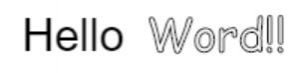
Draw an image
function draw_image(x, y, src) {
    const image = new Image();
    // Register the handler before setting src.
    image.onload = function () { ctx.drawImage(image, x, y); };
    image.onerror = function () { console.error("Could not load image:", src); };
    image.src = src;
}
// Replace image.jpg with the URL of an image you have supplied.
draw_image(0, 0, "image.jpg");
draw_image(100, 100, "image.jpg");
Step 6. Animate Elements
Create an animation loop
function animate() {
 requestAnimationFrame(animate); // Function that creates an animation loop

// Add code that draws and animated objects

}

animate(); // Call animation loop
Create a Controllable Sin Wave With Canvas
Add Dat.Gui Javascript Library To Your HTML Doc
dat.GUI is a lightweight controller library for JavaScript. It creates an interface that allows you to modify varables with sliders. This is helpful to be able to change values and see what it looks like without having to refresh the page.
<script type="text/javascript" src="https://cdnjs.cloudflare.com/ajax/libs/dat-gui/0.7.6/dat.gui.js"></script>More coming soon!
JavaScript Libraries - What's next?

JQuery
jQuery is a lightweight write less, do more JavaScript library. It makes it easier to write JavaScript with less code. It simplifies some of the more complicated parts of JavaScript. JQuery is tailor-made for selecting HTML elements and performing some kind of action on them. Another great feature of JQuery is browsner compatibility. They did a great job at addressing most of the cross-browser issues in JavaScript. It will work the same on all major browsers. If your looking the first JavaScript library to learn this would be a good place to start.
Anime.js
Anime is a really cool JavaScript library that let you animate anything. You can create really amazing animations with just a few lines of code. It works with CSS properties, SVG, DOM attributes and JavaScript Objects.
LEARN MORE:
Documentation

React
React is an open source JavaScript library for building user interfaces for single page applications. It allows you to create reusable UI components. It was created by a software engineer at Facebook. React is used to build large web applications that change data without needing to refresh the page. React uses a special syntax called JSX. This allows you to mix HTML with JavaScript. Learn More
View.js
View is another framework for creating web applications and user interfaces with JavaScript. It can be combined with other libraries and is a good alternative to Angular and React.
LEARN MORE:
vuejs.org
Tutorials Point
Vue.js - Full Course for Beginners
Angular.js
Angular is another Js library used to create single page web applications. This one is maintained by google.
LEARN MORE
w3 Schools
Node.js
Node.js is designed to build scalable network applications and allows you to run JavaScript on the server. Kinda like PHP but with JavaScript.
Ember.js
Ember.js is a JavaScript framework for creating ambitious web applications. Write less code with templates that automatically update. Ember.js provides tools that let you focus on your app instead of writing the same code you've written a hundred times.

BackBone.js
Backbone.js gives structure to web applications using MVC (Model, View, Controller). Model is part of your code that retrieves and populates data. View is the HTML representation the data and controller allows you to save the state of the application in the URL.
Best JavaScript Books & Online Resources
Best JavaScript Books
Jon Duckett Javascript & JQuery
Eloquent JavaScript (Free)
More Coming Soon
Online Resources
w3Schools
Scotch.io
Tutorial Point
Learn JS
Codecademy.com
More Coming Soon

Adding Comments In JavaScript
Use comments to explain what is going on in your code. They are just there to create notes for yourself and others about what the code does. This will help you remember what you did if you come back to the project after some time. If you work on a team it's important to help others understand your code.
A single line comment start with //. Any text between // and the end of the line will be ignored. A multi line comment starts with a /* and ends with a */
You can also use comments to disable blocks of code. This is good when you are testing to see which part of the code is causing an error. Sometimes you may want to try out another version of code without deleting what you have already done.
Using Comments